
Exporting your transactions helps you review, share, or back up your financial data. You can export your records as CSV, XLSX, or PDF in just a few steps.
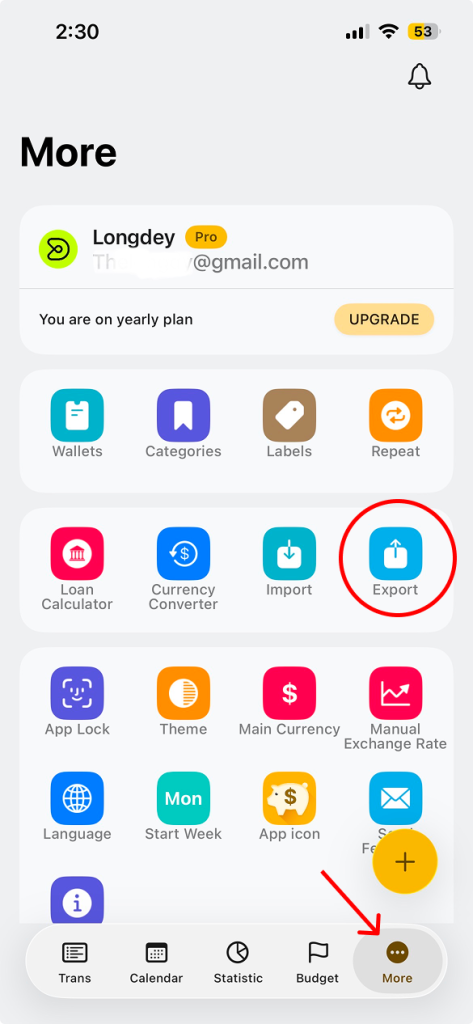
Step 1: Open the menu
- Open Money Tracker
- Tap More from the bottom navigation bar
- Tap on Export from the menu to open the export screen
Step 2: Choose what to export
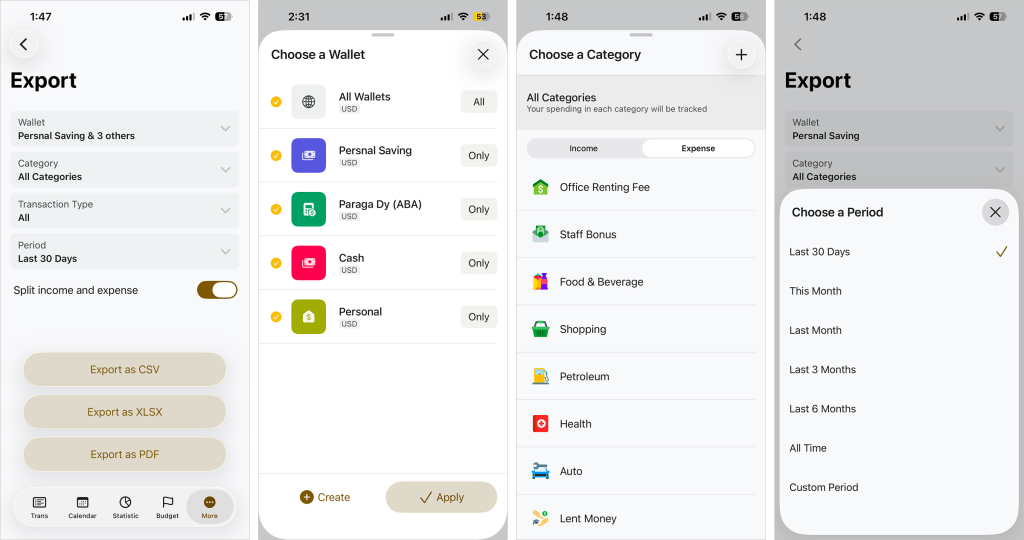
You can customize your export by selecting:
• Wallet – Export from a specific wallet or all wallets
• Category – Choose all categories or a specific one
• Transaction Type – Income, Expense, or All
• Period – Last 30 days, this month, last month, custom period, or all time
Optional:
• Split income and expense – Turn this on if you want income and expense separated in the export file
Step 4: Choose export format
Tap one of the following options:
• Export as CSV – Best for spreadsheets and data analysis
• Export as XLSX – Open directly in Excel or similar apps
• Export as PDF – Easy to view or share
Your file will be generated and ready to save or share.