
Overview
A budget helps you control your spending by setting a limit for how much you want to spend during a specific period.
Money Tracker will show your progress and notify you when you’re close to or exceed the limit.
Step 1: Open Budget
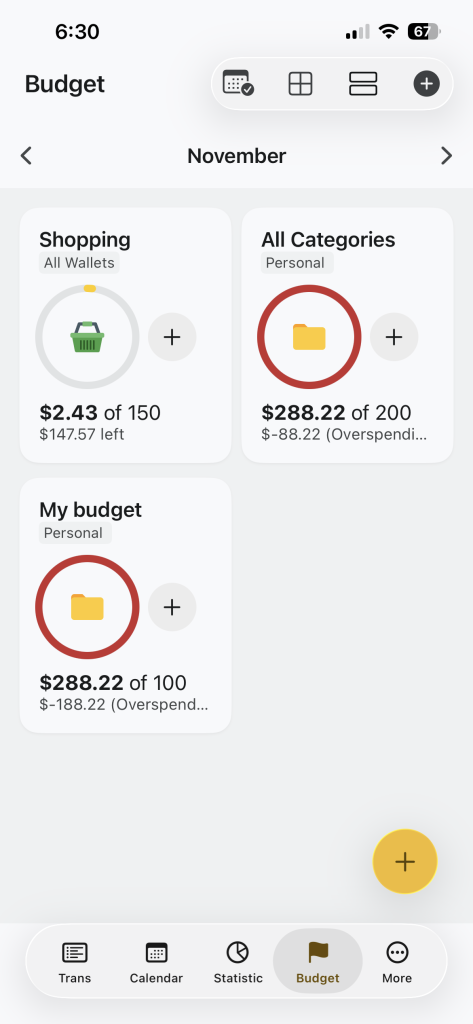
- Open Budget at the bottom menu
- You’ll see your current budget
Step 2: Add a New Budget
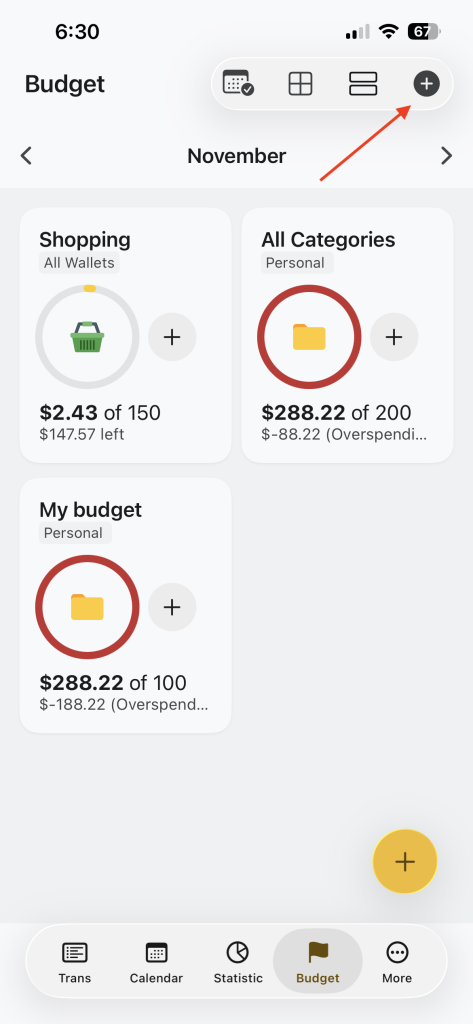
1. Tap the ➕ Add button at the bottom right
2. The Add Budget screen will open
Step 3: Choose Budget For
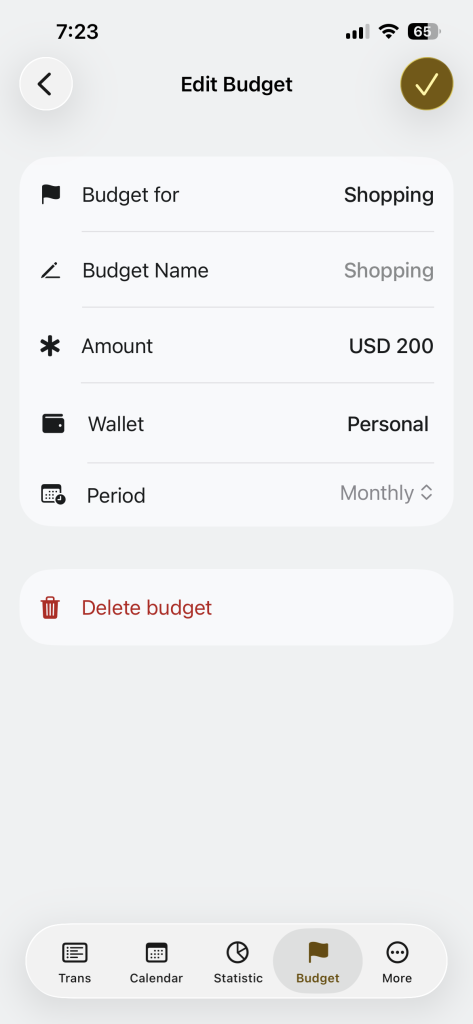
- Tap Budget for
- Select
- All Categories: To track total spending
- Specific Category: Track one category(Example: Shopping)
Step 4: Enter Budget Name
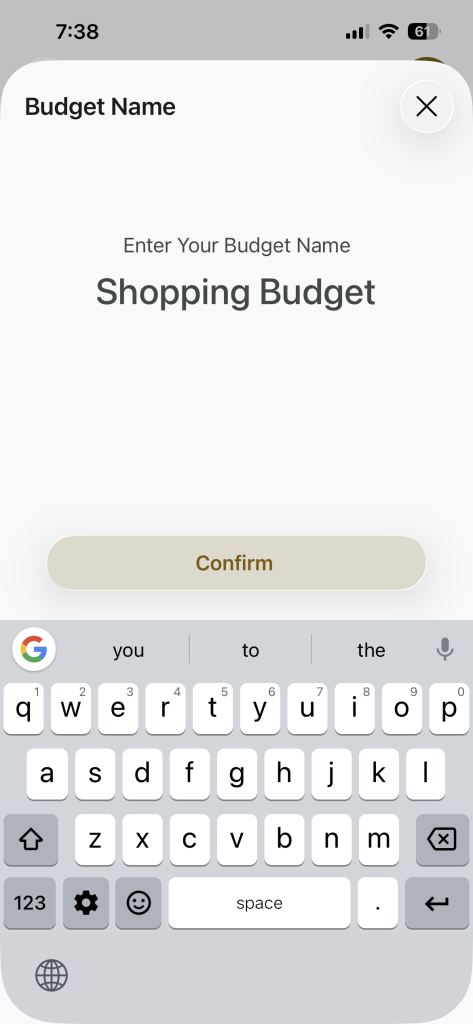
- Tap Budget Name
- Give your budget a clear name
Example: Monthly Spending, Shopping Budget
This help you recognize the budget easily.
Step 5: Set Budget Amount
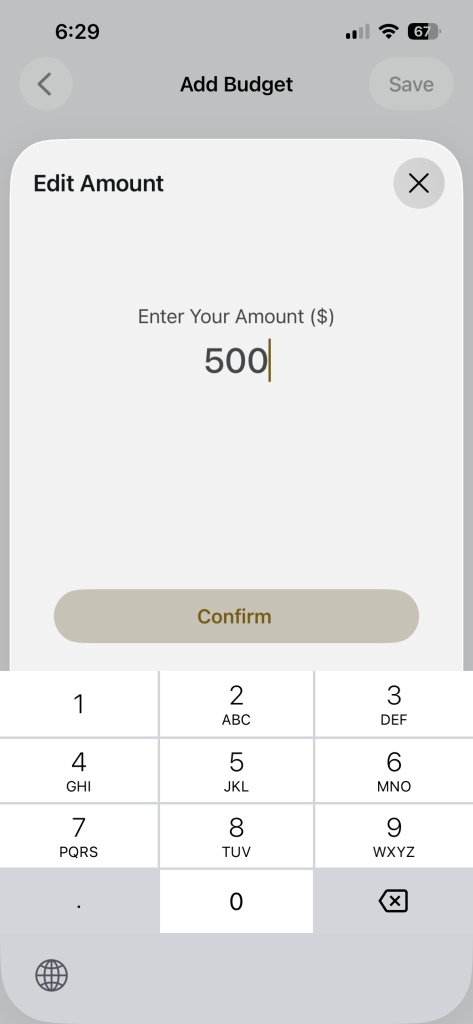
1. Tap Amount
2. Enter the maximum amount you want to spend
3. Tap Confirm
Step 6: Choose Wallet
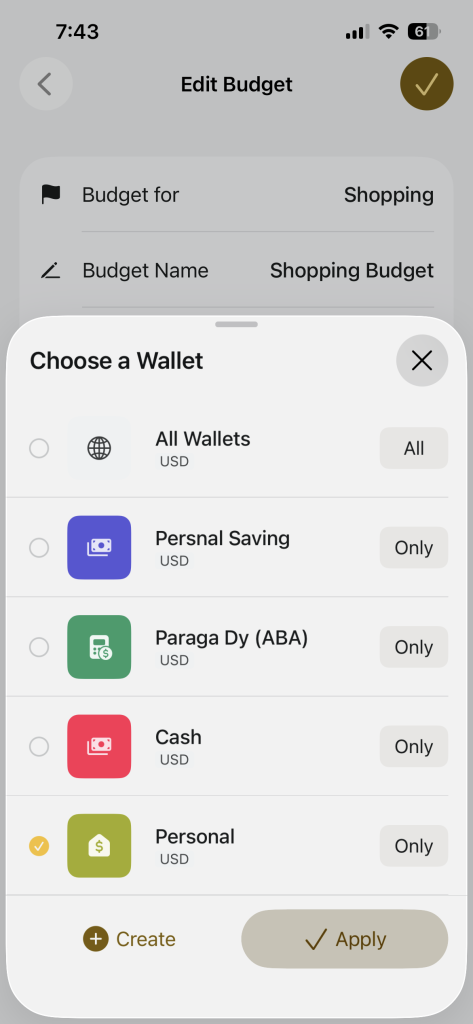
- Tap Wallet
- Select:
- All Wallet: track spending across all wallets
- Specific Wallet: track one wallet only
Step 7: Select Budget Period
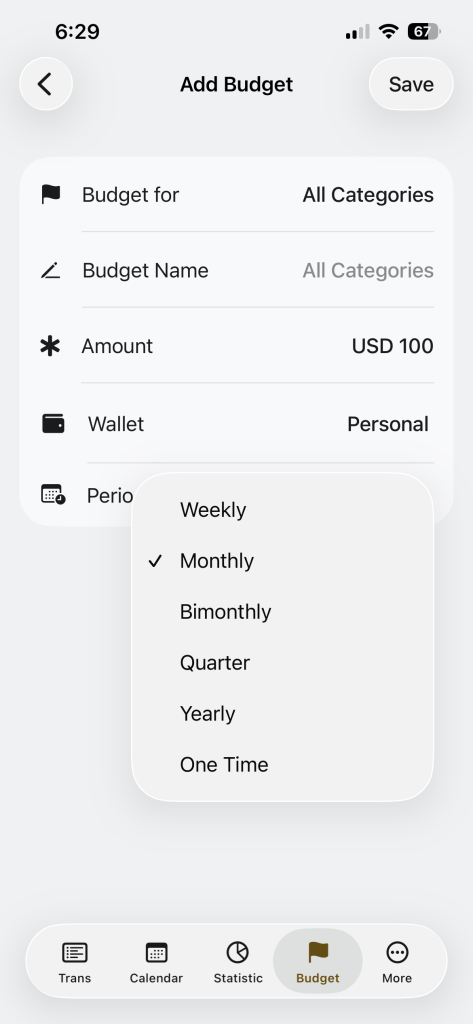
- Tap Period
- Choose budget period
- Weekly
- Monthly
- Bimonthly
- Quarterly
- Yearly
- One Time
Step 8: Save Budget
- Tap Save on the top right
- Your budget is now active
Once created, you can:
• See how much you’ve spent
• See how much is left
• Know when you overspend (highlighted in red)